When you list objects in an S3 bucket, the API might return only a limited number of objects in a single response. If your bucket has a lot of files, you may need to get more pages to see the full listing.
This guide demonstrates how to list objects in Cyberin S3 Object Storage, filter the results by prefix, retrieve additional pages, and troubleshoot listing errors using the S3 API and AWS CLI.
Before you start, make sure you have:
Your Cyberin S3 bucket or Space name.
Your S3 access key and secret key.
AWS CLI installed and configured .
The S3 endpoint and signing region that Cyberin provides.
Permission to list objects within the selected bucket.
Use the endpoint provided by your Cyberin. Don’t assume a DigitalOcean endpoint or region is correct for your account.
To list objects stored in a bucket, you use the ListObjectsV2 operation.
Open your terminal and execute:
aws s3api list-objects-v2 \
  --bucket YOUR_BUCKET_NAME \
  --endpoint-url "YOUR_CYBERIN_S3_ENDPOINT"
Replace YOUR_BUCKET_NAME with your bucket name and YOUR_CYBERIN_S3_ENDPOINT with the endpoint provided by Cyberin.
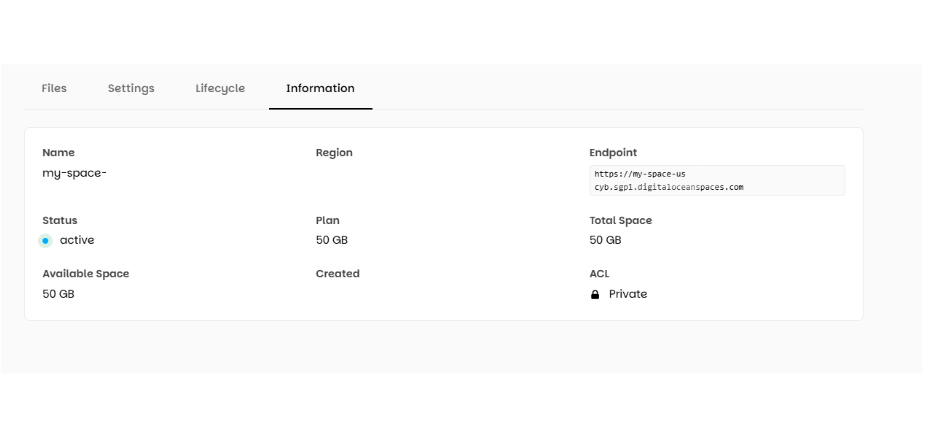
AWS CLI normally retrieves subsequent pages automatically when pagination is enabled.
A successful response may look like this:
{
  "Contents": [
    {
      "Key": "images/photo.jpg",
      "Size": 245760
    },
    {
      "Key": "documents/report.pdf",
      "Size": 512000
    }
  ],
  "KeyCount": 2,
  "IsTruncated": false
}
This is an example response. The actual results depend on the objects stored in your bucket.
If you need to find files stored under a particular path, use the --prefix parameter.
For example, to list objects whose keys begin with images/, run:
aws s3api list-objects-v2 \
  --bucket YOUR_BUCKET_NAME \
  --prefix "images/" \
  --endpoint-url "YOUR_CYBERIN_S3_ENDPOINT"
This returns objects whose keys start with images/.
Note: S3 uses object keys and prefixes rather than traditional folders. For example, images/photo.jpg is an object key, and images/ is its prefix.
If you get no objects, try to list the bucket (without the prefix) to see if the objects exist in a different path.
If you have a bucket with many objects, you can ask for a limited number of objects with each response of an API operation and use pagination to get the rest of the results.
Use the following command to ask for up to 100 objects in one API response:
aws s3api list-objects-v2 \
  --bucket YOUR_BUCKET_NAME \
  --max-keys 100 \
  --no-paginate \
  --endpoint-url "YOUR_CYBERIN_S3_ENDPOINT"
The response may contain fewer than 100 objects.
Check these fields in the response:
Contents: Objects returned in the current response.
KeyCount: Number of objects returned.
IsTruncated: Indicates whether additional results are available.
NextContinuationToken: Token used to retrieve the next page, when provided.
If the response contains:
{
  "IsTruncated": true,
  "NextContinuationToken": "EXAMPLE_TOKEN"
}
additional results are available. The token shown here is illustrative; use the actual token returned by your request.
Pass the returned token using --continuation-token:
aws s3api list-objects-v2 \
  --bucket YOUR_BUCKET_NAME \
  --max-keys 100 \
  --no-paginate \
  --continuation-token "YOUR_RETURNED_TOKEN" \
  --endpoint-url "YOUR_CYBERIN_S3_ENDPOINT"
If the new response still shows IsTruncated: true, repeat the process using the latest NextContinuationToken.
Continue until IsTruncated is false. If it is false, the listing has reached the end.
Important: Copy the token from the preceding response exactly as returned. Do not create your own token or use a token from an unrelated listing request.
Possible causes:
The access key does not have permission to list objects.
The credentials are incorrect.
The request uses the wrong endpoint or signing region.
Solution:
Verify the access key and secret key.
Confirm that the credentials have the required bucket-listing permission.
Check the endpoint and signing region.
Retry the request. If it still fails, contact Cyberin support.
Never share your secret key in support messages.
Possible causes:
The bucket name is incorrect.
The request uses the wrong endpoint.
The bucket is not available under the configured account.
Solution:
Copy the exact bucket name from your Cyberin storage account.
Verify the endpoint supplied by Cyberin.
Confirm that your credentials belong to the expected account.
Run the command again.
Possible causes:
The request retrieves only one page.
The command uses --no-paginate.
The application stops after receiving the first response.
Solution:
Check the IsTruncated field.
If it is true, retrieve the next page using NextContinuationToken.
If you want AWS CLI to retrieve pages automatically, remove --no-paginate.
If using an application or script, ensure it processes every page.
Possible causes:
The bucket is empty.
The prefix does not match any object keys.
The wrong bucket or endpoint is being used.
Solution:
Run the command without --prefix.
Check the spelling and capitalization of the prefix.
Verify the bucket name and endpoint.
Confirm that the expected files exist in the selected bucket.
Possible causes:
The token was copied incorrectly.
The application is using a token from another listing.
The token was modified or truncated.
Solution:
Start a new listing request.
Copy the complete NextContinuationToken from the response.
Pass it unchanged to the next request.
Keep the bucket and listing parameters consistent.
DigitalOcean Spaces API Reference — Object Operations — Learn more about the ListObjects and ListObjectsV2 operations.
Note: These resources describe DigitalOcean Spaces. Use Cyberin's own endpoint and configuration details, and confirm compatibility if an API command behaves differently.